Canva is the most complete free option for most creators, with the largest template library and an editor that needs no design background. But the tool matters less than getting two numbers right: the canvas size and the safe zone. Several still-ranking articles on this exact topic cite an outdated safe zone figure, which means a banner built to their spec can get cropped wrong on some devices. Here's the current, correct information, and a real comparison of the free tools worth using.
The Correct YouTube Banner Dimensions
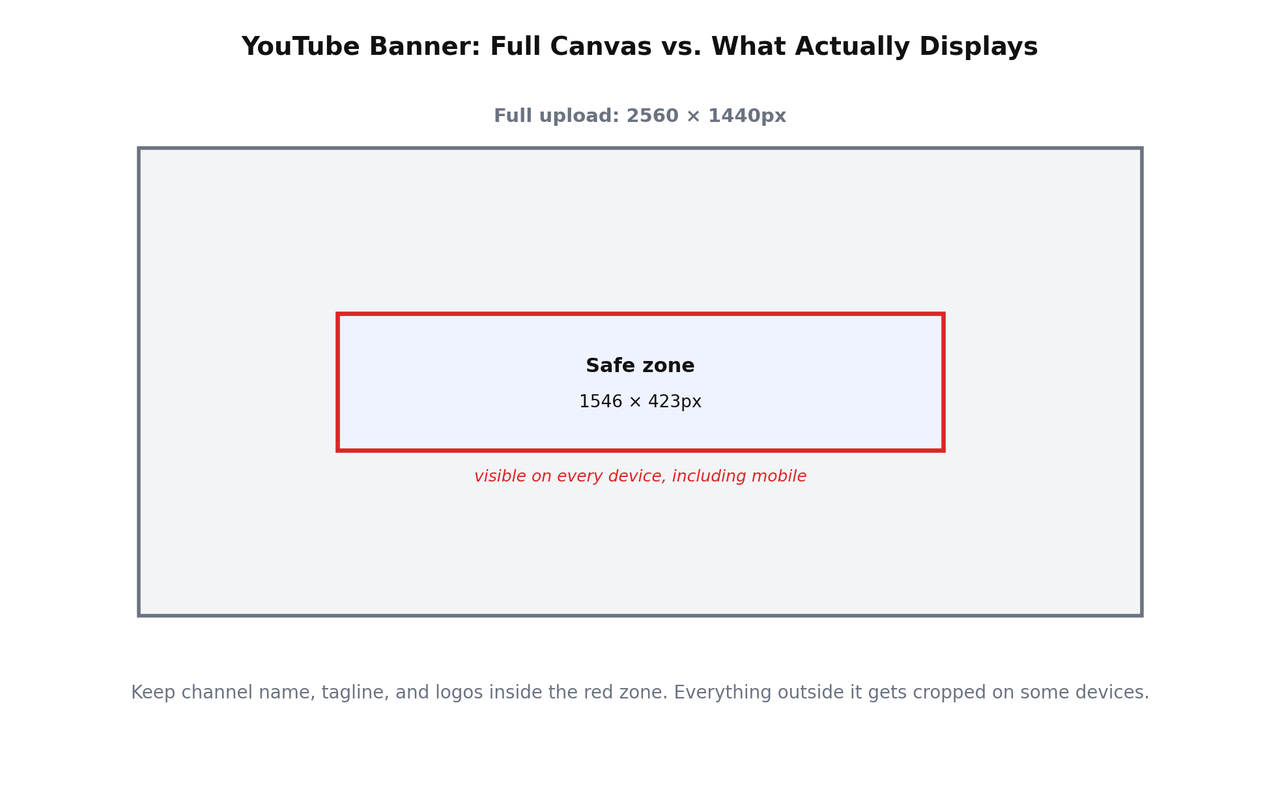
YouTube's current recommended banner size is 2560 by 1440 pixels, with a 2048 by 1152 pixel minimum for anything you upload. The part that actually determines whether your banner looks right everywhere is the safe zone, the area guaranteed to display on every device including mobile: 1546 by 423 pixels, centered in the full image.
Worth flagging directly, since it's a real, checkable discrepancy: some articles covering this exact topic still cite an older safe zone figure of 1235 by 338 pixels. That number is outdated. Multiple current sources confirm 1546 by 423 as the correct, current safe zone. If you're following an older guide, your text and logo may end up closer to the edges than you intended, and get cropped on phones specifically.
The Best Free Tools, Compared Honestly
Canva
The most complete free option available. Search "YouTube Channel Art" inside Canva and it opens a canvas at the correct dimensions automatically, with hundreds of free templates organized by niche, gaming, music, tech, lifestyle, and more. The drag-and-drop editor needs no design experience. The honest limitation: some fonts, stock photos, and premium elements are locked behind a paid plan, though the core banner-making workflow is genuinely free to use and export.
Snappa
Worth calling out specifically for one detail most comparisons skip: Snappa's free plan exports banners at the correct 2560 by 1440 dimensions without a watermark, which isn't true of every free design tool. It's a faster, more stripped-down experience than Canva, better suited to someone who wants a clean banner in a few minutes without browsing a large template library.
Adobe Express
A genuinely strong free option, particularly if you already use other Adobe products. It combines templates with AI-assisted image generation, useful if you want a custom background without sourcing stock photography yourself. The editor has a slightly steeper learning curve than Canva or Snappa for a first-time user.
Fotor, Kapwing, and Picsart
All three offer genuine free tiers with YouTube-sized templates and drag-and-drop editors. None meaningfully outperforms Canva for this specific task, but they're reasonable alternatives if you're already using one of them for other content and don't want to learn a new tool just for a banner.
BeFunky and iPiccy
The bare-bones option. Fewer templates, simpler editors, but genuinely free with no real upsell pressure. A reasonable choice if you just want to place text over a background image and move on without browsing a template library at all.
How To Actually Make One In Canva
- Go to canva.com and start a new design, searching specifically for "YouTube Channel Art" so the canvas opens at the correct 2560 by 1440 dimensions automatically.
- Pick a template close to your niche, or start blank if you want full control over the layout.
- Add your channel name in a bold, simple font, large enough to read clearly at a small size, since that's how most viewers will actually see it.
- Keep your channel name, tagline, and any logo inside the centered safe zone, 1546 by 423 pixels, so nothing important gets cropped on mobile.
- Export as PNG or JPG and upload it directly through YouTube Studio's channel customization settings.
The Safe Zone Mistake That Ruins Most Banners
The single most common banner mistake isn't a bad design, it's placing text or a logo near the edges of the full canvas, which looks fine on desktop and then gets cut off on mobile or TV. Before exporting anything, check that every piece of text you actually need someone to read sits inside the centered safe zone, not just somewhere on the full image. A banner that looks great in the editor and gets cropped wrong on half your actual audience's devices isn't a good banner, it's an untested one.
Should You Use An AI Banner Generator?
A newer category of AI-powered banner tools has emerged, generating custom background art from a text prompt rather than starting from a template. Treat marketing claims from these tools with the same scrutiny you'd apply to any product describing its own features in superlative terms, several of the sites promoting these tools are themselves the company selling the tool. That doesn't make them bad, AI-generated backgrounds can genuinely save time sourcing custom art, but a template-based tool like Canva remains the safer, more predictable starting point if you're not already comfortable evaluating AI-generated output for quality and brand fit.
A Simple Banner Design Checklist
- Canvas is 2560 by 1440 pixels, not smaller.
- Channel name and tagline sit inside the centered 1546 by 423 pixel safe zone.
- Text is large and bold enough to read at a small size, not just full-screen.
- The design previewed on both desktop and mobile before publishing, not just checked in the editor.
- File exported as PNG or JPG, under YouTube's 6MB upload limit.
Frequently Asked Questions
What is the correct YouTube banner size in 2026?
2560 by 1440 pixels is the recommended size, with 2048 by 1152 pixels as the minimum YouTube will accept. The safe zone guaranteed to display on every device is 1546 by 423 pixels, centered in the image.
Is Canva really free for making a YouTube banner?
Yes, the core banner-making workflow, templates, editor, and export, is free. Some specific fonts, stock photos, and premium elements are reserved for Canva's paid plan, but they're not required to produce a complete, professional banner.
Why does my banner look fine on desktop but cropped on mobile?
Important text or logos were likely placed outside the centered safe zone. Mobile devices only display the central 1546 by 423 pixel area of the full banner, so anything closer to the edges gets cut off.
Do I need design experience to make a good YouTube banner?
No. Template-based tools like Canva and Snappa are built specifically for people with no design background, customizing a pre-made template by swapping text and colors rather than designing from scratch.
The Actual Recommendation
Start with Canva unless you specifically want Snappa's faster, watermark-free export for a quick, simple design. Whichever tool you use, the dimensions matter more than the tool itself, build at 2560 by 1440, keep everything essential inside the 1546 by 423 safe zone, and preview on mobile before you consider it finished. That single habit prevents the most common, and most avoidable, banner mistake. For the rest of what's worth setting up before your first upload, I've covered that in full in how to warm up a new YouTube channel.
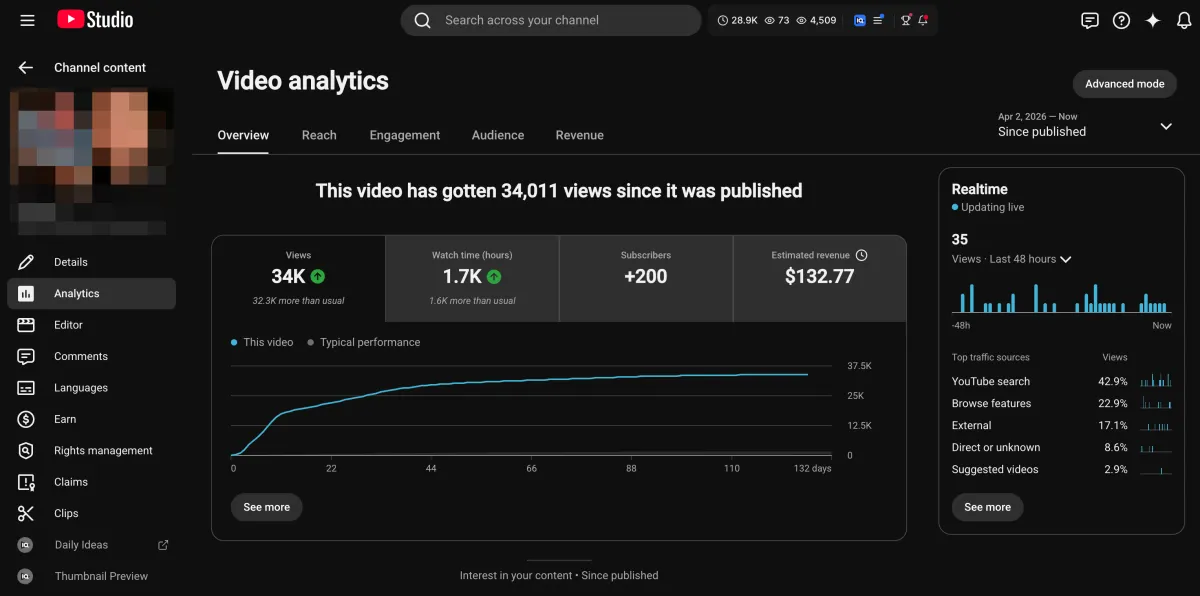
Learn how I turned a $132.77 video into $1000+ per month asset
Full case study on how you can replicate my success with YouTube SEO strategy.
Free downloadThe Zero Audience System
Build permanent YouTube income without a camera or an audience
The full methodology, 31 lessons plus bonuses. Limited spots.